 AM_SW Radio connects your iPhone to a remote radio receiver which will stream the audio broadcast on frequencies between 100kHz and 30 MHz as received at that location.
 AM_SW Radio connects your iPhone to a remote radio receiver which will stream the audio broadcast on frequencies between 100kHz and 30 MHz as received at that location.
These receivers are provided by the generosity of individuals and are generally not associated with any of the radio stations that they can receive, and thus, stream to you.
These receivers utilize a software-hardware combination known as a 'KiwiSDR'. Kiwi, for the fact that they are from New Zealand, and SDR for 'software defined receiver'. For more information on the KiwiSDR system, please visit http://KiwiSDR.com.
The AM_SW Radio app is not meant to satisfy the needs of people wishing to explore the radio spectrum, but for those who wish to listen to known AM, ShortWave, or Amateur 'ham' radio stations or 'nets' that regularly appear on specific frequencies.
For those wishing to explore the radio spectrum, Please visit the KiwiSDR search page from a normal web browser and listen to selected servers from there, as the website implementation of the radio is quite elaborate and multifunctioned for those 'scanning the bands'. The iPhone web browser, while small in size, is quite capable in this regard.
For additional support and information please contact the author of the app John Martin [KF8KK] at kf8kk@getodd.com
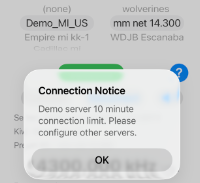
When you first install the AM_SW_Radio app it comes pre-loaded with a preset server connection to a fully operational KiwiSDR server (near Traverse City MI US and shown as 'Demo_MI_US') and four station presets consisting of two AM stations that are reliably received by this server along with the time-reference stations WWV and CHU. Because all KiwiSDR servers have limited simultaneous connections, please only enjoy listening via this 'DEMO' server briefly to get familiar with the operation of the AM_SW_Radio app. Connections to the 'DEMO' server are limited to 10 minutes as it is expected you will configure this app to suit your specific listening desires (and leave the limited 'DEMO' server connections available for others).
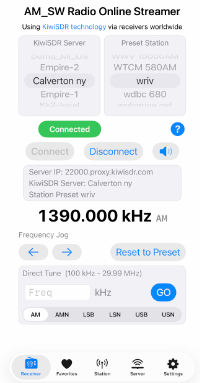
The AM_SW Radio app has four main pages, Receiver, Station, Server, and Settings. The RECEIVER page is shown on startup and is where you can initiate a connection to a KiwiSDR SERVER and select your desired station preset or to directly enter a frequency and mode you desire once connected.
Select the KiwiSDR SERVER using the left selector near the top of the screen. Select s STATION PRESET using the selector near the top right of the screen. While connected, the STATION PRESET can be changed, but if you wish to change the KiwiSDR SERVER you will need to disconnect first.
CONNECTING:
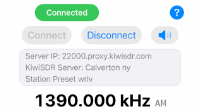
Tap the 'CONNECT' button at the left mid-screen to initiate a connection to a KiwiSDR Server.
Tap the 'DISCONNECT' button to disconnect from the server.
To the right of the 'DISCONNECT' button is a speaker MUTE button which will toggle the muting and un-muting of the sound when tapped.
Above the Connect and Disconnect buttons is a status indicator which indicates what the App is doing. After tapping 'Connect' the indicator will switch to orange as the app is 'CONNECTING' to the server. Once an internet connection is made to the server, this indicator will change to blue as the app is 'CONFIGURING' the receiver at the KiwiSDR server. Once the KiwiSDR server starts sending audio to the app, the indicator will turn green and report a 'CONNECTED' state.
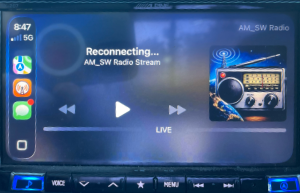 Should the app lose connection to the server during the transition from Wifi to Cellular data, it will make up to three automatic attempts to reconnect and display 'RECONNECTING' while doing so. This usually results in only a few seconds of silence while the transition takes place.
NOTE:If the Kiwi server available connection ports had filled up while you were connected, this reconnection will typically take about 90 seconds as the server needs to first recognize that your earlier connection had failed before allowing you to reconnect.
Please note that the AM_SW Radio app is setup to limit connection durations to 120 minutes at a time. This timeout can be set shorter in the 'Settings' page if desired. Some KiwiSDR servers have longer time limits, some shorter.
If the app is set to 'MUTE' the app will automatically disconnect from the server after 5 minutes without audio being played and the iPhone screen is dark (the app is in 'background mode').
In the event of a phone call or if Siri is verbalizing a text message the app will disconnect from the server during the interruption and then promptly reconnect once the audio interruption is over.
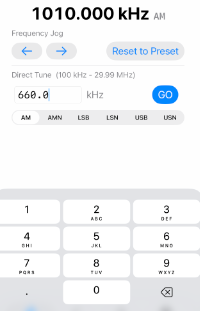
If you wish to 'JOG' the frequency up or down there are buttons to allow that. If you hold a 'JOG' button down (rather than tap it) it will repeat and continue slowly moving up or down in frequency until released.
The 'Reset to Preset' button sets (or resets) the frequency and mode to whatever was stored in the station preset now displayed in the selector near the top right of the screen.
If you just want to directly dial up a particular frequency, tap in the 'Freq' Box near the lower left and a keyboard will appear for you to enter the frequency. Once entered, tap the 'GO' button to switch to that frequency.
At the bottom of the screen are the received mode selection buttons. You can select from regular AM radio or 'AM-Narrow' with the AMN button. Similarly SSB is available as LSB lower sideband (and narrow bandwidth LSB as 'LSN') and USB upper sideband and a narrow bandwidth version as USN.
SELECTING A PRESET STATION:
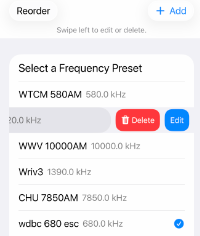 Tap the 'STATION' button at the bottom of the screen to display the Station Preset setup page.
If you tap the '+ Add' at the top right you can add station frequency and mode presets. If you swipe a preset to the left you can choose to edit or delete it if desired.
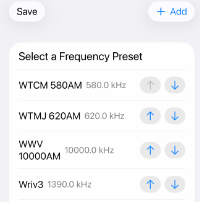 Tap the 'Reorder' button at the top left if you want to change the order the station presets are displayed. Tap 'Save' when done to save your changes.
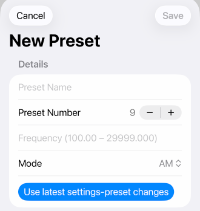
Tap the "+ Add Preset" button to display the New Preset page where you can enter a name for your preset, select the desired frequency and mode.
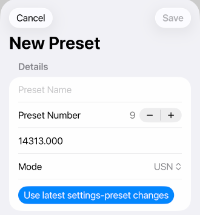
If you have made changes to the frequency or reception mode to tune in another station since you connected to a KiwiSDR server using an existing preset you can tap the button to pre-load the fields with the new information and just name the new preset before saving.
Hit SAVE to save this new preset.
SELECTING A KiwiSDR SERVER:
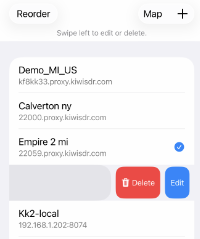 Tap the 'SERVER' button at the bottom of the screen to display the Server Setup page.
Any saved servers can be edited or deleted by swiping to the left and tapping the appropriate button.
If you happen to have the exact URL of a desired KiwiSDR server, from the Server Select page, tap the '+' button in the upper right and the Add Kiwi page will be displayed for you to manually enter the information.
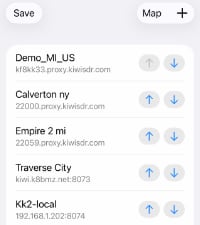 Tap the 'Reorder' button at the top left if you want to change the order the KiwiSDR servers are displayed. Tap 'Save' when done to save your changes.
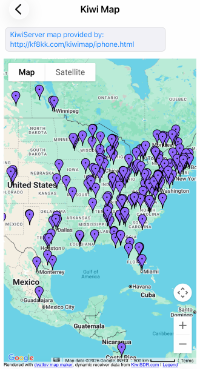
To add a new KiwiSDR server via a convenient map interface, tap the MAP button at the top of the page and a map showing the online KiwiSDR servers is displayed. You will need to tap the '+' button a few times and swipe a bit to zoom in on the part of the world where you would like to receive from.
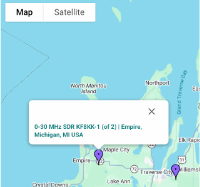
Once you have a display showing the servers in the desired area, tap one of them to display it's basic information and then tap that again to load that servers connection information into a fresh 'Add Kiwi' page.
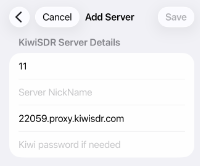
Enter a nickname for this KiwiSDR server and tap SAVE.
If this particular Kiwi server requires a password to connect (which is rare) you can enter it here, or edit the server later.
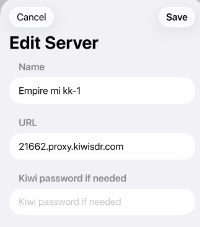
Should you wish to edit the information for a server that you have saved you can do so by swiping to the left and selecting 'Edit'
FAVORITES PAGE:
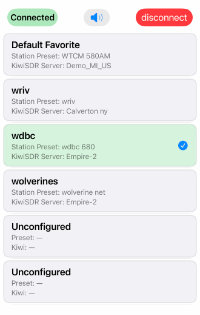 You can create up to six 'Favorites' which are combinations of specific KiwiSDR servers and station presets that can be called up conveniently by tapping one of the Favorites listed on this page.
You can even switch Favorites by just tapping on the favorite while connected. The app will disconnect from the previous favorite server and connect to the new server. There will be a short pause while this happens, and a text message indicating such displayed below the status indicator.
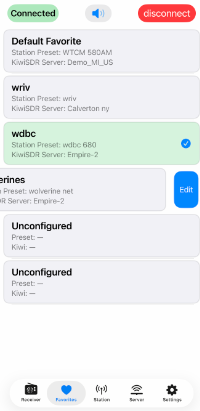 You can edit your Favorites by swiping to the left. A default Favorite has been provided to demonstrate this functionality.
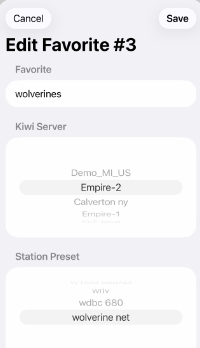 For 'Unconfigured' favorites, you only need to tap the favorite to bring up the 'Edit Favorite' page where you can assign it a name and select which Station Preset and KiwiSDR server it will use.
SETTINGS PAGE:
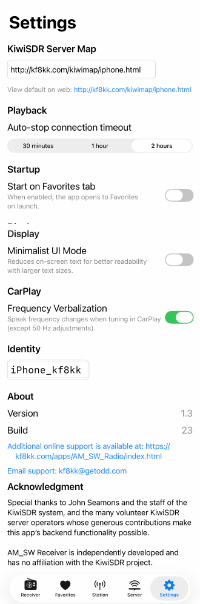 Should you desire, you can change the source used to discover KiwiSDR servers via this page.
This app will also automatically disconnect from the server after a period of 2 hours, 1 hour, or 30 minutes as selected.
Once you have some Favorites configured, you might prefer to have the app launch with the Favorites page displayed, you can select that mode here.
If you have set your iPhone to use a larger than standard text mode or a 'display zoom' mode (see the iPhone settings app for these settings), you can select 'Minimalist UI Mode' to reduce the amount of non-essential text appearing on the main 'Receiver' page so that all the important functions still display in a useable manner.
For those using this app in the CarPlay environment, should you desire to 'jog' the received frequency up or down while connected to a Kiwi server the app can verbalize the new frequency being received. The app does NOT verbalize frequency changes when the 50hz frequency jogs are tapped.
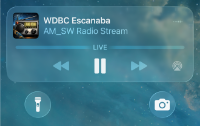 Please remember that while the app can play the streamed audio while the iPhone has 'gone to sleep' (the screen darkens and this app transitions to what is known as 'background mode'), if you tap the MUTE button, the operating system will close out the connection to the server after 5 minutes when there is no audio being played.
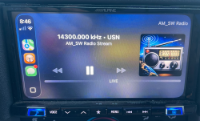 Mute (or 'pause') is meant to be used to silence the received audio only for short periods. Because of the automatic disconnection after five minutes muted (paused) this can also be used when done listening to evoke an automatic disconnect from the server after five minutes without the need to unlock the iPhone to tap the disconnect button.
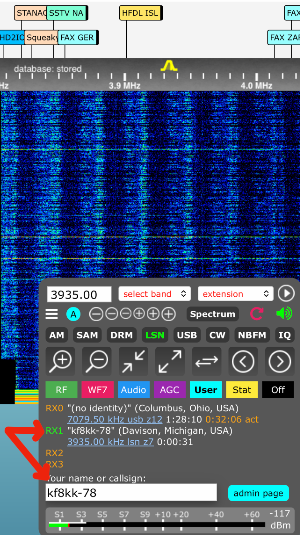 There is an 'IDENTITY' entry where you can enter any nickname, callsign, or other identifier that shows up in the KiwiSDR Server logs and to other web users of the KiwiSDR you are using. To the left is where that 'identity' text is displayed should you find it helpful to provide the other users of the KiwiSDR server (and the server administrator) an idea of who has made a connection. The location information received is gleaned by a reverse lookup of your IP address as provided to the KiwiSDR server software. You need to use a VPN if you wish to obfuscate the IP address and location.
APPLE CARPLAY
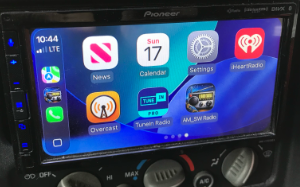 The AM_SW Radio app is compatible with Apple CarPlay and will
show up as an icon on the CarPlay home screen.
The AM_SW Radio app is compatible with Apple CarPlay and will
show up as an icon on the CarPlay home screen.
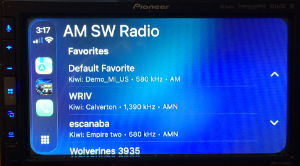 Tapping the AM_SW Radio icon brings you to the app
'Favorites' page where you can select which of the six favorites you have setup in the app on your iPhone. Tapping the up and down arrows on the right allows you to scroll through the list.
Tapping the AM_SW Radio icon brings you to the app
'Favorites' page where you can select which of the six favorites you have setup in the app on your iPhone. Tapping the up and down arrows on the right allows you to scroll through the list.
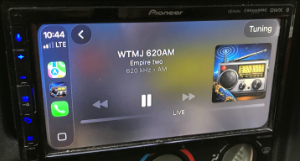 Once you have selected the 'Favorite' to connect with, the app displays the 'NowPlaying' screen which shows the information for the 'Favorite' (station preset and Kiwi server, along with frequency and mode). In the upper right is additional status indications of interest while the connections are being made to the Kiwi server. Once a
connection is made the status indicator will change to a 'Tuning' button where you have limited ability to tweak the incoming audio.
Once you have selected the 'Favorite' to connect with, the app displays the 'NowPlaying' screen which shows the information for the 'Favorite' (station preset and Kiwi server, along with frequency and mode). In the upper right is additional status indications of interest while the connections are being made to the Kiwi server. Once a
connection is made the status indicator will change to a 'Tuning' button where you have limited ability to tweak the incoming audio.
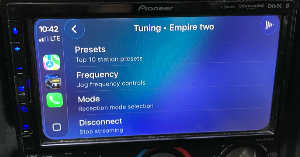 Once the 'Tuning' button (on the upper right when connected) is tapped, you can modify the settings of the Kiwi server receiver that you are currently connected to, or disconnect entirely from that server. Note that the server is automatically disconnected if you switch to another audio app in CarPlay or select a different 'Favorite' on the favorites page. Tapping the left arrow on the top left just to the right of the clock steps you back a screen, eventually reaching the FAVORITES page. Tapping the right arrow in the upper right takes you to the main 'NowPlaying' page.
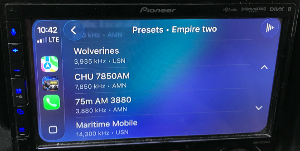 Since it's often the case that you may have multiple stations you wish to listen to from a particular Kiwi server, you can select from any of the first TEN station presets from the 'TUNING PRESETS' page. These just change the frequency and mode but NOT the Kiwi server. Again, there are up and down arrows on the right to allow you to scroll through the list. You can reorder the Station Presets on the iPhone as desired, but only from the iPhone itself.
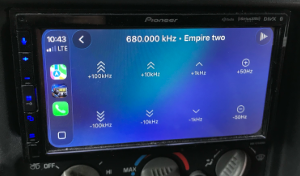 In some instances you may wish to tune the frequency of the receiver you are streaming from up or down by a bit, this is what the TUNING FREQUENCY page is for. With the exception of the 50hz frequency jog buttons, the app can verbalize the new frequency (in kilohertz) jogged to as you press the buttons. (note that this verbalization can be disabled on the app 'Settings' page). Note that the frequency shown in the page title is the starting frequency you were tuned to when the page is displayed and does NOT 'track' your modifications! (that's the job of the iPhone verbalization after you tap a jog frequency button)
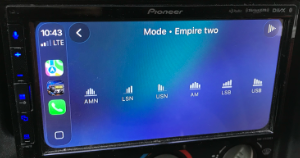 Should you wish to change the receiving mode (usually due to interference or similar) you can change modes on the 'TUNING MODE' change page. All the modes that this app provides are available.
May 2026 v1.8